What is Bash
Bash is a UNIX shell and command language that is widely used for writing shell scripts in most Linux distributions. Bash was also the default shell in all versions of Apple macOS prior to the 2019 release of macOS Catalina, which changed the default shell to ‘Z Shell’ (zsh), although Bash currently remains available as an alternative shell.
Bash typically works in a text window where users can write commands and perform tasks like system administration, automation, network programming, etc. It’s an acronym for Bourne Again Shell which is a replacement for Bourne Shell.
Writing commands and instructions in a bash script file and allowing automated execution of commands is called bash scripting.
The forthcoming portion discusses how you can get started with bash scripting along with the respective commands. Let’s go!
Creating a shell script file
In order to perform bash scripting, you will need to write commands in a shell script file and then run it in your Linux terminal. The most common extension for shell script files is ‘.sh’
Let’s create a new file named ‘test.sh’ in the present working directory and write our commands in this file. The new file can be created using the ‘touch’ command in Linux. After creating the file, you can list the directories and files in the present working directory to verify that the file was actually created.

To run the script file, you can run the following command in your terminal:
$ bash test.shThis will automatically execute all the commands in your test.sh file one by one.
Displaying your message in the terminal
In many cases, you may need to display some message either for the user or for debugging purposes. The ‘echo’ command does your task here. It helps you in displaying a message or any variable as a standard output in your terminal.
The #!/bin/bash character sequence at the top of the file is called Shebang in UNIX like systems and executes the file using bash shell. Write the following code in test.sh with your favorite text editor and run the bash command as shown in the image.
#!/bin/bash

echo "Hello there! Welcome to the Linux tutorials"
Using ‘-e‘ after the ‘echo‘ command acts as an interpretation of escaped characters that are present with backlashes. For instance,‘\n’ in a string acts as a line breaker and ‘\t’ is used to insert tabs at its place in the standard output.
#!/bin/bash

echo -e "Hello there!\n Welcome to the Linux tutorials"
You can also create custom variables in your script and display their values. For this, you will need to add ‘$‘ before the variable , otherwise it will be treated as a standard string. I will be using integer type of variables in this blog post for your convenience.
You can also display environment variables and examine them depending on your use case. Below is the script to assign a variable with some value and displaying it in the terminal.
#!/bin/bash

var=2
echo $var
Taking user input from the terminal
The user input can be taken using the ‘read’ command in Bash script. This command takes input from the user and stores it in a variable. You don’t need to declare the variable before reading it.
#!/bin/bash

echo "Enter your value"
read var
echo "You entered $var"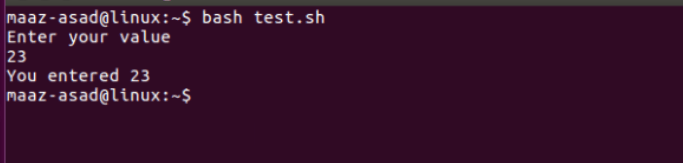
You can also take standard input for multiple variables using ‘read’ command by separating them with space/s. An illustration for this is
#!/bin/bash

echo "Enter your values"
read var1 var2
echo "You entered $var1 and $var2"
Performing arithmetic operations on variables
Bash provides you with arithmetic operators for doing basic math in your script. The operators can be either unary or binary. Let’s write a script to demonstrate the addition and subtraction of two variables and display the result in your terminal.
#!/bin/bash

echo "Enter your values"
read a b
sum=$((a+b))
diff=$((a-b))
echo "Sum is $sum and difference is $diff"
From scalar to vector: Arrays in Bash
Consider a scenario where you may need to store large number of variables together for performing operations on them. Arrays come to rescue you here. You can store hundreds of values in a single data structure and access them using indexing. The indexing can be performed using following syntax
${array[index]}By default, the array indices start from 0 and go up to n-1, where n is the size of the array.
One method of defining the array and then printing one of it’s element is demonstrated in the following script.
#!/bin/bash

arr=(1 4 5)
val=${arr[0]}
echo "Element at index 0 is $val"
Conditional statements in Bash scripting
It’s quite common that you may need to execute a set commands under some condition only. This is handled by conditional statements in Bash. The syntax for conditional execution of commands is
if [ condition ]
then
   #do this
else
   #do this
fi
Take proper care with spaces while writing the code for conditional statements in Bash. Below is an illustration on how to compare two numbers using conditional statements.
#!/bin/bash

a=100
b=20
if [ $a == $b ]             #comparing a and b
then
     echo "$a is equal to $b"
else
     echo "$a is not equal to $b"
fi
Conclusion
These were few examples on performing bash scripting in your Linux distributions. Bash provides you with many other utilities and statements that can be used to efficiently automate the execution process of the commands.


 Express Machine Learning